EurexOTC Clear Releases
Overview of content
EurexOTC Clear Release 22.0
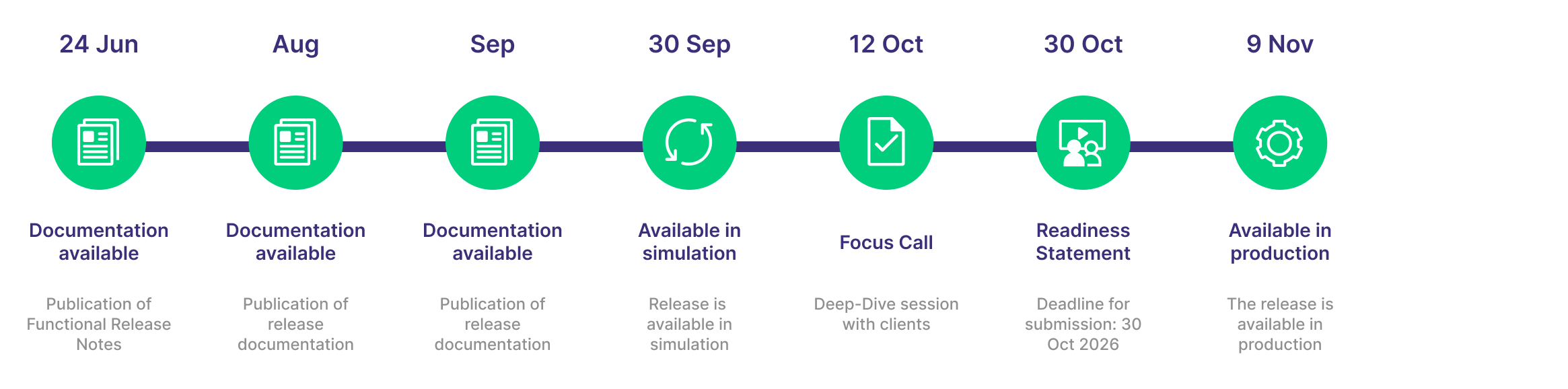
To enhance the clearing experience, Eurex Clearing is introducing EurexOTC Clear Release 22.0, which goes live on Monday, 9 November 2026. This release delivers significant functional and reporting enhancements, including new GUI features, designed to improve your operational efficiency and provide greater control over your portfolios.
Simulation start: 30 September 2026
Production start: 9 November 2026
Circulars
Circulars
Newsflashes
- Eurex Clearing Readiness Newsflash | C7 Release 13.0 and EurexOTC Clear Release 22.0: Readiness Statements are available
- Eurex Clearing Readiness Newsflash | Invitation Reminder: Focus Call – EurexOTC Clear Release 22.0
- Eurex Clearing Readiness Newsflash | EurexOTC Clear Release 22.0: Additional documentation available
- Eurex Clearing Readiness Newsflash | Invitation: Focus Call – EurexOTC Clear Release 22.0
- Eurex Clearing Readiness Newsflash | EurexOTC Clear Release 22.0: Additional enhancements added to release scope
Readiness Statement
We kindly ask all EurexOTC Clear Members to submit the Readiness Statement for EurexOTC Clear Release 22.0 by Friday, 30 October 2026 latest.
For your convenience a online submission process has been published. The online Readiness Statement is here available: Readiness Statement. Please enter your dedicated Eurex Clearing PIN in the online questionnaire. The PIN is available for the Central Coordinator in the Member Section under the following path: My Profile > PIN.
Release Items/Participants Requirements
Feature/Enhancement | Details | Action Item |
General System and Process Updates | The functional and technical changes in this release may affect your internal processes and technical interfaces. | Clients are asked to review their internal processes and update technical interfaces (e.g., report XSDs, FpML Interface) as needed. They should also contact their back-office vendors to ensure necessary adjustments are made. Please ensure your release contacts are updated in the Member Section and subscribe to EurexOTC Clear Circulars to receive all updates. |
Enhancement of Portfolio-Margin Adjustment (PMA) | A new initial margin component, the Portfolio-Margin Adjustment (PMA), is being introduced for OTC IRS and FXNDF products. This will enhance the overall initial margin calculation. The technical implementation will add a new field to margin reports, although it will be set to zero until regulatory approval is received. | No action required. The PMA value will be zero until it is formally activated post-launch. |
New Restrictions on Post-Trade Events (PTEs) | To ensure proper handling of cash flows, restrictions on Post-Trade Events (PTEs) are being enhanced. A PTE will be blocked for any trade with a past-date unsettled coupon. Additionally, a full termination PTE will not be allowed for GBP SONIA and EUR €STR trades with a coupon payment unsettled on the current day. | Clients are asked to review and adjust their post-trade workflows to account for these new restrictions, ensuring all coupon payments are settled in a timely manner to avoid interruptions. |
Reporting and GUI Enhancements for Portfolio Transfers | A new "Portfolio Reports" tab in the GUI allows for the on-demand request of three new intraday reports (CI291, CI292, CI293) for portfolio transfers. This enables clients to assess the impact of a potential transfer before formally initiating it, improving decision-making and efficiency. | Clients are asked to familiarize themselves with the new GUI functionality and the structure of the new reports to take advantage of this new feature. |
General Report and XSD Schema Updates | Numerous reports are being introduced or enhanced to provide more detailed information. This includes a new Future Fixing Report (CC214) and additional fields in the Full Inventory Report (CB202/CB207). Additionally, the XSD schema for the CI281 Intraday Fixing report is being updated to prevent validation failures. | Clients are asked to review the detailed report and schema changes and update their internal data processing systems accordingly to ensure seamless integration and avoid processing errors. |
Enhancement of MarkitWire Trade Loading | The system will now retain the original execution venue MIC provided by MarkitWire for new trades. This aligns MarkitWire data with all other trade submission systems, ensuring greater data consistency across your portfolio. | No action required. This change applies only to new trades; legacy trades will not be updated. |
Password Reset Functionality in EurexOTC Clear GUI | A new Password Reset Functionality has been introduced in the EurexOTC Clear GUI, enabling members to independently reset passwords for users within the same Member ID. | Clients are asked to familiarize themselves with the new password reset feature to manage user access efficiently within their Member ID. |
Enhancement to CC209 Initial Margin Report | An enhancement has been made to the CC209 Initial Margin Report, where the value displayed in the INITIAL_MARGIN field will now be rounded to one decimal place. | Clients are asked to review and update their internal data processing systems to accommodate the rounding change in the INITIAL_MARGIN field to ensure accurate reporting. |
Eurex Initiatives Lifecycle
From the announcement till the rollout, all phases of the Eurex initiatives outlined on one page! Get an overview here and find other useful resources.
Are you looking for information on a previous initiative? We have stored information about our previous initiatives in our Archive for you!
Contacts
Eurex Frankfurt AG
Customer Technical Support / Technical Helpdesk
Service times Monday to Friday from 01:00 – 23:00 CET
Saturday from 09:00 AM to 05:00 PM CE(S)T
T +49-69-211-VIP / +49-69-211-1 08 88 (all)
Eurex Frankfurt AG
Key Account Management
Service times from 09:00 - 18:00 CET